How to Use TextStylish
This page shows how to use TextStylish: type your text, pick a style, then tap to copy it into any app.
Open the TextStylish home page, type a name or a line, and the generator shows it in every style. A style looks wrong in an app? Report it on the contact page.
By the TextStylish editorial team. Updated:
Type your text
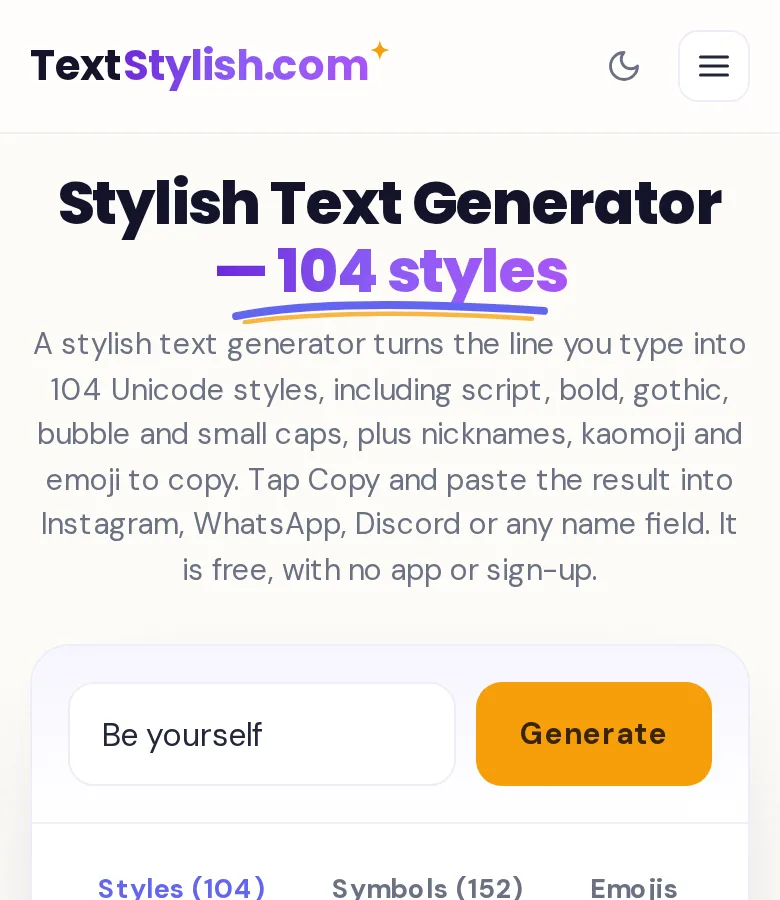
Start on the home page and type your text into the box at the top. The generator rewrites the line in every style at once, so there is no style to choose first and nothing to install. Results appear under the box, with a Copy button beside each one.
- Type a name, a nickname or a short line into the box.
- Press Generate to see it in all styles.
- Use the tabs for Styles, Symbols and Emojis, and the group buttons to narrow the list.
- Tap the heart on a style to keep it in your favourites.
What each page does
Each kind of page on TextStylish has a different job, and the table lists the page, the option it offers and the result you get. Pages that share the generator all work the same way: type your text, pick a look, then copy the result into an app.
| Page | Option | Result | Example |
|---|---|---|---|
| Home | Type text, then pick Styles, Symbols or Emojis | The line in every style at once | 𝐁𝐞 𝐲𝐨𝐮𝐫𝐬𝐞𝐥𝐟 · 𝓑𝓮 𝔂𝓸𝓾𝓻𝓼𝓮𝓵𝓯 · 𝔹𝕖 𝕪𝕠𝕦𝕣𝕤𝕖𝕝𝕗 |
| Style pages | Pick one look | A letter map, ideas to copy and where the style works | 𝐁𝐨𝐥𝐝 |
| Name pages | Pick a name | A list of names to copy, with a box to submit your own | ◤ Your Name ꔪ |
| Guides | Read | Write-ups on Unicode ranges, platform limits and accessibility | — |
Paste it into an app
Tap Copy, then paste in the app. The result is plain text made of Unicode characters, so it goes into any field that accepts text. Display names, bios and captions usually take it; usernames often do not, and some characters change from one device to the next.
| What you see | What it means | What to do |
|---|---|---|
| Empty boxes | The device font has no glyph for that character | Try another style from the same group |
| Characters removed | The app filters the field by character range | Use the style in a display name or bio instead |
| Field rejects the text | Usernames and handles often allow plain letters only | Keep the handle plain and style the display name |
Some characters show as boxes on older devices or are removed by an app, so paste the result, check it, and only then save it. More on the limits is in the same stylish text looks different in each app guide.